Widget Settings (Search Bar)

Purpose:
This section explains how to install the booking widget and search bar on the website.
⏱ Estimated time: ~10mins

In addition to the search bar provided by tripla,
the booking widget can also be launched from a custom-designed search bar or search panel using a JavaScript function.

Required Setting:
- 2. Search Bar (Required)
- 3. Header (Required)
- 6. Enable booking flow by clicking (Required)
- 8. Default Search Result (Required)
- 9. Sort Order (Required)
*All of the above settings must be completed.
1. Where to Set
- Setting Page: Property Management Screen
- Action: 'Setting' → "Widget Setting" → "Booking Widget"
2. Search Bar (Required)
| 1. Display tripla widget search bar on your website | When the Display search bar checkbox is enabled, the search bar appears on the official website. |
| 2. Multi-room search | Enabling this option allows guests to search for multiple rooms (e.g., 2 or 3 rooms). |
| 3. Room search limit | ・Up to 9 rooms can be set as the maximum search limit. ・If child tier are configured, the room reservation limit matches the room search limit. |
4. Room reserve limit per reservation | ・Defines the maximum number of rooms that can be reserved in a single booking. Reservations exceeding this limit cannot be completed. ・The maximum value that can be set is 35 rooms. ・For undated search, the reserve limit is as same as "Room search limit" instead. *This option is displayed only when [Users specify the number of kids (share bed with adult)] is enabled in the "Kids setting". |
2.1 Display Tripla widget search bar on
1. Following Pages Selecting a page allows the display conditions for the search bar to be configured. Display: Shows the search bar. Exception: Hides the search bar. URL string to match: Enter the target URL. 2. All Pages 2.2 Search widget position
1. Center 2. Sticky to bottom (scroll-following) 3. Designated by CSS Selector
- For Wix, settings using CSS selectors are not supported.
- The search bar will not appear even if its position is defined with CSS.
- To display the search bar in Wix, use Center of page or Fixed at bottom.
*Because the search bar may appear during page transitions, “Fixed at bottom” is recommended.2.3 Search button text
- Change the text displayed on the search button (for example: “Search”, “Find Room”, “Check Availability”, etc.).
- The system supports multiple languages, it is possible to set different button text for each language.
- The Search Bar language will automatically change base on the user browser's language.
- Kids on the search bar is displayed base on Kids Setting.
Notes when using CSS selectors:
- CSS selectors can be used to adjust the display position of the search bar.
- Enter the necessary code in the CSS selector field and specify the position in the website’s CSS.
*tripla does not provide guidance on CSS coding; please consult the website developer. - Do not edit the display inside the search bar or its elements (date field, guest selectors, etc.) using CSS.
*Such edits may cause layout issues during system updates.
3. Header (Required)
The header design displayed at the top of the availability search screen can be configured.
The header can be set to one of three types: Name, logo, or customized.
| 1. Display property name with text | Display the property name with text as header. |
| 2. Your logo | Display the property logo as header. |
| 3. Customize | To use a designated header design, select Customize and enter the required HTML and CSS code. ▼Example: When different designs are needed for the PC and mobile versions. HTML:
CSS:
|
4. Custom Design
This is to configure the colors of the search bar buttons.
*The font color (Black or White) is set automatically based on the background color and cannot be changed manually.
5. Footer
To add a specific footer design, select “Custom” and enter the HTML and CSS code.
6. Enable booking flow by clicking (Required)
- Copy the link from Launch booking flow via link click and paste it into the HTML.
- The link varies depending on where it is embedded.
- Select from Link, Button, or Image as needed.
Set the image URL using an absolute path.
When specifying the URL directly, the booking widget can be displayed by adding”?tripla_booking_widget_open=search” after the domain.
▼Example:
https://<domain>/?tripla_booking_widget_open=search
7. Additional required fields
| 1. Kanji name for Japanese | When this option enabled, the users are required to input Kanji name, upon making reservation. (Only for Japanese) |
| 2. Customer Address | When this option enabled, the users are required to enter their address. |
8. Default Search Result (Required)
| 1. Room Type | Set display default search result by room type. |
| 2. Plan | Set display default search result by plan. |
9. Sort Order (Required)
The initial search results can be displayed either by room type or by plan.
| 1. Recommended | If this option selected, the plan/room types appear in search results base on AI recommendation. |
Recommend Algorithm: 1. Based on AI analysis of current user Sort plan/room type display based on AI recommendation. 2. Based on order that set in room type, hotel plan Sort the order of room types and plans manually. | |
| 2. Price low to high | If this option is selected, plans/room types appear in the search results from low to high price. |
| 3. Price high to low | If this option is selected, plans/room types appear in the search results from high to low price. |
- For manual sorting, select [Based on order that set in room type, hotel plan (options will be displayed in the order they were created)],
then reorder items on the Plan List page. - The plan/room placed in position 1 is displayed as the recommended item.
- If the first plan has no availability, the second or third plan will be displayed.
10. Search without check-in date
- The "Search without check-in date" feature allows searches to be performed without selecting a date.
- The search bar for "Search without check-in date" has a different width and layout from the standard search bar.
- Multiple-room reservations are supported, however, different room plans cannot be selected.
- When enabled, "Date undecided" checkbox for Search without check-in date appears in the guest-facing search bar.
- Selecting “Book” in the search results displays a rate calendar.
- Before enabling "Search without check-in date", click [Update lowest price data] to refresh the latest rate information.
Once the update is complete, the last updated date and time will be displayed.
・ If the last updated timestamp is outdated, the data must be refreshed again before turning the toggle switch on.
・ Ensure that the latest timestamp is displayed before enabling the toggle switch. - Plans with a scheduled "Posting start date" will not appear in Search without check-in date.
- The minimum rate reflects the lowest price within the upcoming one-year period.
- Rate data is updated automatically once per day (around 1:00 AM (JST)).
- To update rates before the automatic update, click [Update lowest price data].
11. Kids settings
Information about kids setting can be displayed on the Booking Widget during the search and reservation process.
Turn on the Setting, and text editor box will appear.
Attention:
If this section is not appear, please follow action below:
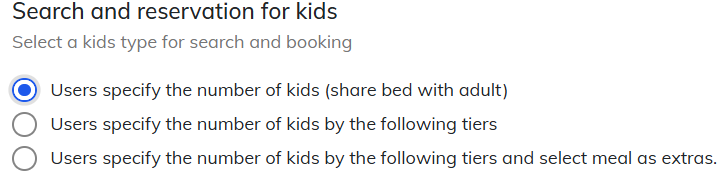
The "Kids Setting" section in the "Widget Setting" will only appear if "Users specify the number of kids (share bed with adult)” is selected.
After selecting and saving above setting, the section will appear.
12. Day-use plan switch
Turning on the “Search for Day-Use Plans” switch allows day-use plans (day trip plans) to be displayed in the search results.
For Day-use plan creation, please see here.13. Custom URL
Enabling this setting allows the official website URL to be displayed in the reservation confirmation email.

- Custom URLs cannot be used when a subdomain is in use.
- The tripla JavaScript code must be installed on the specified page.
14. Chat Bot
- The chatbot display on the booking widget can be enabled or disabled.
- Settings can be configured separately for desktop and mobile.
If this option is not selected, the BRR widget will also not be displayed.
Related Articles
Area Settings
Purpose: This section explains the area search settings for the search bar placed on the brand top page of a chain hotel. ⏱ Estimated time: ~10mins Note: A dedicated brand account is required to place this on the brand page. Please contact tripla ...Chatbot Widget Settings
Purpose: This section is to explain how to configure chatbot's appearance, name, icon image and more. ⏱ Estimated time: ~10mins 1. Where to Set Setting page: Property Management Screen Action: 'Setting' → "Widget Setting" → "Chatbot Widget" After ...Recommender Widget
Purpose: This section explains how to configure the recommender widget, which uses AI recommendations to display the most suitable room type for each user by plan. ⏱ Estimated time: ~10mins Plans are displayed at the lowest price within the past ...Launch from Existing Search Panel
If a custom-designed or existing search panel is used instead of the search panel provided by tripla, the booking widget can be launched using a JavaScript function. *This setting is intended for website administrators. 1. window.TriplaBookingWidget ...URL Parameters for Booking Widget
Purpose: This section is to explain how to create URL to launch various booking widget screens, by placing links with specific URL parameters on the property homepage. ⏱ Estimated time: ~10 mins "URL parameters" refer to variables (strings) appended ...