Input FAQ Answers

Input FAQ Answers

Info
Purpose:
This section explains how to edit chatbot responses from the FAQ answer input screen in the property admin panel.
Warning
To maintain translation accuracy and content consistency, please refrain from making frequent revisions whenever possible.

1. Where to Set

  1. Setting Page: Property Management screen
  2. Action: 'FAQs'  [FAQs]


2. FAQs Screen Overview

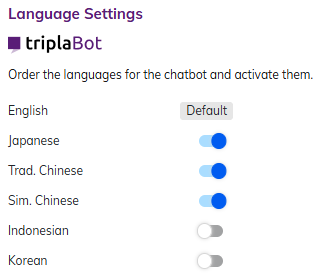
1. Language Tabs
Tabs are available for each language.
Switching tabs displays the FAQs for the selected language.

■Note: 
The displayed tabs can be enabled or disabled from:
Setting pageProperty Management Screen
Action'Admin Setting' → "Language Setting" 

2. Export FAQs

Export registered FAQ from the management screen.
・After clicking 
[Export FAQs] a Term of Use screen will pop up, click [Confirm] to proceed.
*Term of Use confirmation screen will only pop-up once.
・Select targeted FAQ language and click [Export].
・The export data will be sent to the logged in email address.

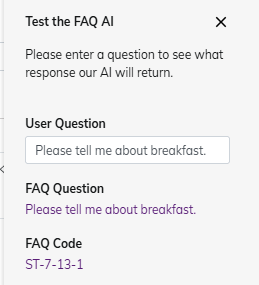
3. Test

Check which answer will the AI respond based on the registered answer.
*Please ensure the FAQ question is enabled, otherwise the AI will not be able to display response. 

4. Update

Click [Update] button to save any changes or update.
5. Search Box・Use free-text search to find FAQs.
*This is an exact match search, so start by searching with only the relevant keyword.
*Press Enter on the keyboard after typing the keyword.
6.  FrequencyFrequency is how often the FAQ is requested in chatbot.
7. Large category
・FAQs can be sorted by the categories defined by tripla.
*Category settings cannot be changed.
8. Small category
・FAQs can be sorted by the categories defined by tripla.
*Category settings cannot be changed.
9. Code
This is the FAQ management code assigned by tripla.
*Code cannot be changed.
10 QuestionThe question text set by tripla.
*
Changing the question text is not recommended as it may reduce AI responsiveness.
*For creating new FAQ questions, please consult thetripla.
11. AnswerThe answer text can be freely edited or added.
12. Chat preview modeThis is to view how the answer will look in the display of the chat.
13. Internal NotesA memo field used only for internal management.
14. Active
Set the registered FAQ answer ON or OFF.
When ON, the AI will respond; when OFF, it will not.


3. Updating FAQ Answers

  1. FAQ answers can be freely edited.
    However, to maintain translation accuracy and content consistency, please refrain from making frequent revisions whenever possible.
  2. A list of FAQs that could not be answered due to blank responses is sent by email every Friday at 22:00 (JST).
  3. The FAQ list email is sent to the email address registered in "Settings" → "Blank FAQ Notification Settings" → [Email] in the property admin screen.

  4. By clicking the [FAQ] link in the email, the FAQ answer registration screen in the admin panel will be displayed.
▼Email Sample:


4. Brand Bot Settings

Once the brand bot is configured, a brand bot switch is added to the FAQ answer input screen.
By toggling the switch, responses can be switched between Property responses and Brand responses.
1. Property Answers
Use this option when answers to the same question vary by property.
When a customer asks a question, they will select the property, and the chatbot will provide answers specific to that property.
2. Brand Answers
Use this when editing FAQs shared across the entire brand or group properties.
Customers can receive immediate responses without selecting a specific property.
Info
Info:
・If the use of the brand bot is required, please contact tripla.
・When "Brand Settings" is enabled, a Brand / Property toggle is displayed on the FAQ page.


5. Export FAQs Detail

  1. The "Export FAQs" result will be sent via email.
  2. Click on the link in the email and a FAQs management screen will open on the new tab,and the CSV file will be downloaded automatically.
The CSV file contains the following items:
Title
Discription
codeFAQ code 
hotel idhotel ID
hotel questionFAQ question
hotel answerFAQ answer
Language code
・ja:japanese
・en:english
・ko:korean
・zh_Hant:Traditional chinese
・zh_Hans:Simplified Chinese

The following three languages are planned to be supported in the future.
・id:Indonesian
・th:Thai
・ar:Arabic
is_active
0:FAQ is active
1:FAQ is 

6. FAQ Answer Translation

  1. A notification of the change will be sent to tripla on the day after the content is updated.
  2. After the notification is received, the other languages will be translated and reflected on the customer-facing screen within approximately 1 to 7 days.
Warning
Notes:
  1. If the same answer is revised frequently, it may cause delays in the overall translation process. Please update the content only after the revisions are finalized.
  2. Content can be translated at the facility; however, if the AI training for the answers is insufficient, the translated content may not be reflected correctly. In such cases, please contact the tripla.
  3. Content that is unlikely to be asked in languages other than Japanese may not be translated.

7. Frequently Asked Questions Page

  1. By adding the parameter ?faq_widget_open=true to the end of the website URL, a Frequently Asked Questions (FAQ) page is automatically generated based on the registered FAQ content.
  2. By embedding the following code on the homepage, the FAQ widget can be installed:
    <button data-tripla-faq-widget-toggle="1">Open FAQ Widget</button>
    Once installed, the widget will appear on the homepage as shown in the image below.
    • Related Articles

    • Chatbot FAQ Registration

      Purpose: This section is to explain how to display FAQ (Frequent Asked Question) in the chatbot and how to configure the question-triggering messages based on specific conditions. ⏱ Estimated time: ~5mins Required Setting: 2. Set up FAQ Content ...
    • Custom Bot

      Purpose: Based on the steps created, the bot can ask questions to guests in a chat format. (Settings such as providing different responses for YES/NO answers or returning to a specified step when no search results are found can also be configured.) ...
    • Facebook Messenger Integration

      Purpose This section is to explain how to set up Facebook Messenger Integration within the tripla management screen. ⏱Estimated time: ~10 Minutes Required Setting: 2. Facebook Messenger System integration (Required) 3. Enabling Facebook Messenger ...
    • tripla Guide

      Purpose: This section explains how in-house information that was previously provided on paper or via VOD can be displayed on guests’ smartphones. A subscription to both "tripla Bot" and "tripla Guide" is required to use this feature. 1. Where to Set ...
    • Email Notification (Custom Email Templates)

      Purpose: To customize email template such as, "Reservation Confirmation", "Reservation Reminder", "Reservation Cancellation" and "Thank you email". ⏱ Estimated time: ~20mins 1. Where to Set Setting Page: Property Management screen Action: 'Setting' → ...