Point History

Purpose:
This section explains how to check the point history by selecting a specific period and reviewing the point changes that occurred during that time.
1. Issued Points Balance by Brand
1.1 Where to Set
- Setting page: Brand Management Screen
- Action: 'Setting' → "Point Program"
On the "Point Program" screen, click [Issued points amount] on the tab.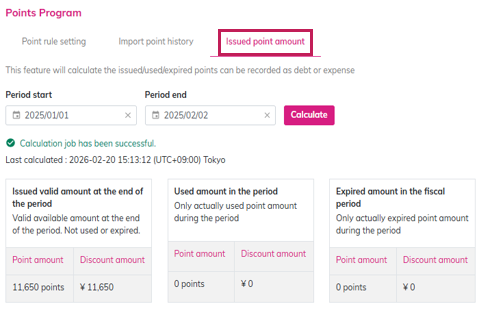
1.2 Calculating Point History for a Selected Period
- To view the latest information, specify the calculation start and end dates.
- Then click [Calculate] and then refresh the page.
Please note that due to system specifications, the status will remain as “Calculating” unless the page is refreshed.Once the calculation is complete, the results will be displayed as below:
1. Issued valid amount at the end of the period 2. Used amount in the period Actual used point amount during the selected period 3. Expired amount in the fiscal period Actual expired point amount during selected period

2. Membership Point History
For instructions on how to check each member’s point history, please refer to this manual.
Related Articles
Membership Bookings & Point History
Purpose: This section explains how to check reservation, point, and update history for each member in the management screen, as well as how to add or deduct points. 1. Where to Set Setting Page: Brand Management screen Action: 'Members' Step 1 ...Point Program
Purpose: This section explains how to set up point program, point expiry timing, and rank-up conditions etc. ⏱ Estimated time: ~30mins Required Setting: 2. Point Naming (Required) 3.1 Amount (Required) 3.2 Date (Required) 6. Rank Up Condition ...Direct Mail History
Purpose: A list of direct mail items sent by post can be reviewed. 1. Where to set Setting page: Tripla Connect Management Screen Action: 'Direct Mail History' 2. How to Verify Open Direct Mail History, then click a mail campaign from the list to ...New Feature
June 18, 2025 Connect New segments have been added: “Check-in in N days” “Checked out N days ago” Additionally, a new point-related segment has been added: “Points expiring in N days” You can find the full list of segments [here]. June 17, 2025 Bot ...Chat List
Purpose This section is to explain how to view chatbot inquiry history. Inquiries received via the chatbot can be viewed in a list and downloaded as a CSV file. Inquiry history can be checked for up to one year, excluding the most recent four weeks. ...