Kids Setting

Purpose:
This section explains how to set kids stay options, including rates and availability.
This section explains how to set kids stay options, including rates and availability.
⏱ Estimated time: ~30mins
1. Where to set
- Setting page: Property Management Screen
- Action: 'Setting' → 'Booking Engine' → [Kids Setting]
2. Allowance
Select whether to accept kids stays.
[Kids are not allowed]: Limited to adult guests only (e.g., junior high school students and older).
[Kids are allowed]: Accepts kids.
3. Definition
Set the age range eligible for kids stays.
When [Under 12 years old] or [Under 6 years old] is selected, "Search and reservation for kids" become available.
*When specifying by age, the maximum limit is 18 years old.
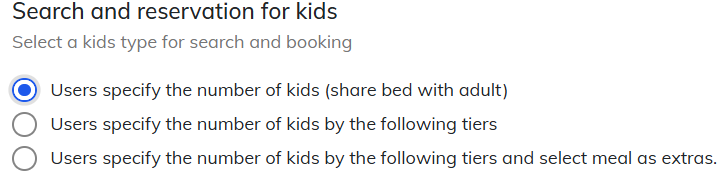
4. Search and reservation for kids & Number of kids
Only when the definition is set to [Under 12 years old] or[Under 6 years old],detailed settings are available in the "Search and reservation for kids" section:・"Users specify the number of kids by the following tiers",・"Users specify the number of kids by the following tiers and select meal as extras".*When [Between 0 to □ years old] is selected, only the "Number of Kids" can be configured.4.1 Users specify the number of kids (share bed with adult)
In the [Users specify the number of kids] setting, this option can be used when meals, bedding, and charges are all not required for kids.The following explains the behavior of the "Number of kids" setting.
3. Set capacity and maximum number of adults & kids for each room
the [Max # of Adults] and [Max # of Kids] configured on the Room Type screen will be displayed in the Booking Widget.- Manual: Room Type Creation
4.2 [Users specify the number of kids by the following tiers] & [Users specify the number of kids by the following tiers and select meal as extras]
In the settings “Users specify the number of kids by the following tiers” and “Users specify the number of kids by the following tiers and select meal as extras”, detailed configurations can be made for the following items:
・ Setting of Kids Tier
・ Age of Kids
・ Kids Profile
・ Kids Tier4.2.1 Setting of Kids Tier - Primary school children & Age of kids
4.2.2 Setting of Kids Tier - Infants
Tripla Book Booking Widget One Tier Upper grades and Lower grades 4.3 Kids Profile
The configured Kids Tier settings can be saved for future use.
By default, the Standard setting is selected automatically.
- [+Add new profile]: Add new configuration other than standard setting.
- [Delete this selected profile]: Delete the "Select kids profile".
4.4 Kids Tier
In the "Kids Tier" settings, it is possible to configure the, meal options (for infants only), bed availability (for infants only), charge, and whether the kids is counted as a guest.
1. Enabled Enable or Disabled each of the kids tier. 2. ID Automatically generated.
It appears in booking details and price breakdowns.3. Tier Displays the kids category. 4. Meal Displays whether a meal is included.
*Cannot be changed.5. Bed Displays whether a bed is included.
*Cannot be changed.6. Occupancy Sets whether kids are included in the room capacity.
■Not Include:
Kids are not counted in the room capacity.
■Include:
Kids are counted in the room capacity.7. Adult price calculation Sets whether the kids rate is included in the adult rate calculation.
■Not Included:For "Head Count Charge", the rate calculation references the setting excluding kids.▼Example:If two adults and one kids stay, the kids rate is calculated based on the “2 adults” rate setting.■Included:For "Head Count Charge", the rate calculation references the setting including kids.▼Example:
If two adults and one kids stay, the kids rate is calculated based on the “3 adults” rate setting.8. Charge setting
5. Kids setting description
Information about kids setting can be displayed on the Booking Widget during the search and reservation process.
- Setting page: Property Management Screen
- Action: 'Setting' → 'Widget Settings' → 'Booking Widget' → [Kids Setting]
Turn on the Setting, and text editor box will appear.

Attention:
If this section is not appear, please follow action below:
The "Kids Setting" section in the "Widget Setting" will only appear if "Users specify the number of kids (share bed with adult)” is selected.
After selecting and saving above setting, the section will appear.
6. Creating Plans that Don’t Allow Kids
| Step 1 | Create a Kids Profile in which all kids tiers are disabled. |
| Step 2 | Apply it to the target plan. |
7. Changing kids Settings for Each Plan and Room
The same kids settings can be applied across all plans, or different kids settings can be applied to each plan individually.
7.1 Apply same kid profile setting to all plan
Step 1 Step 2 When [All room types apply the same kids profile] box is checked, the same kids settings are applied to all room types, that linked to the plan. 7.2 Apply individual kids profile setting for each plan
Step 1 Step 2 ・The "Kids Profile" option will appear on "Select room type" section.
・Select the "Kids Profile" setting accordingly from the dropdown, for each plan and room type and click [Save].
7.3 Changing kids setting for each Room
If the [All room types apply the same kids profile] box is unchecked for the plan associated with the room type, the "Kids profile" setting can be configure in the Room Type Screen.
If the [All room types apply the same kids profile] box is checked for the plan associated with the room type, the "Kids profile" setting on room type side will be fixed and cannot be changed.
Related Articles
Language Setting
Purpose: This section explains how to configure the language settings used across all Tripla services. ⏱ Estimated time: ~5 mins 1. Where to Set Setting Page: Brand Management screen Action: 'Admin Setting' → 'Language Setting' 2. Language Setting ...Notification Setting
Purpose: This section explains how to configure the notification recipient for the property when a reservation, cancellation, or a booking with options is made. ⏱ Estimated time: ~10 mins Required Setting: 2. Recipients (Required) 3. Send Language ...URL Parameters for Booking Widget
Purpose: This section is to explain how to create URL to launch various booking widget screens, by placing links with specific URL parameters on the property homepage. ⏱ Estimated time: ~10 mins "URL parameters" refer to variables (strings) appended ...Extras: Optional Extra
Purpose: This section explains how to create Extras, such as special dishes or cakes, that can be attached to a plan. ⏱ Estimated time: ~10 mins Note: This feature is supported only for TL Lincoln, TEMAIRAZU, NEPPAN, and RAKUTSU. It is not displayed ...Widget Settings (Search Bar)
Purpose: This section explains how to install the booking widget and search bar on the website. ⏱ Estimated time: ~10mins In addition to the search bar provided by tripla, the booking widget can also be launched from a custom-designed search bar or ...